How to Remove Spyware with Ad-aware 6.0 |
 |
|
by FunBard
|
| September 9, 2003 |
|
I have made a small tutorial on the use of Lavasoft's Ad-aware 6.0 in the hopes it can at least help one person along the way who may be plagued with spyware or adware. This webpage is not meant to promote anything commercial but just to be used as a guide for the new user to get acquainted with the proper use of the program (updating being the most important). Well, without further explanation here it is:
Note: Be sure to close all open programs and I would also advise to uninstall Kazaa or other p2p programs before continuing. 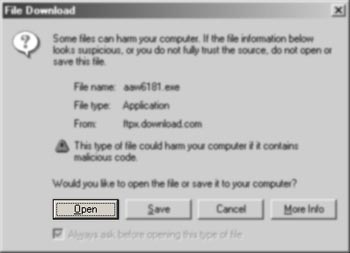 | 1 | Download Ad-Aware 6.0 (free). Click here to get to the download page and click  or "Run from current location" when you see what is pictured to the left. or "Run from current location" when you see what is pictured to the left. | 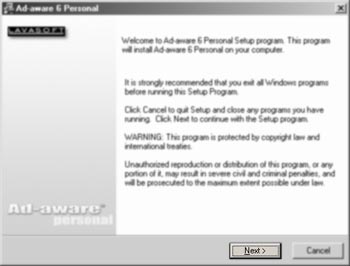 | 2 | Once the download is complete, this window will show up. Click  until you see the picture in the next step. until you see the picture in the next step. |  | 3 | At this screen, click  to complete the installation. to complete the installation. |  | 4 | Double click the Ad-aware 6.0 shortcut icon on your desktop 
| 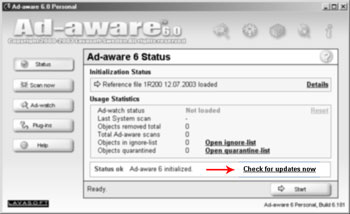 | 5 | Once the program is open, click on 
This will have update Ad-aware's "reference file" which allows it to find new spyware components. | 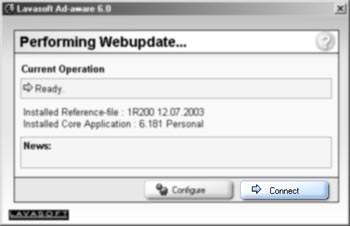 | 6 | Click 
| 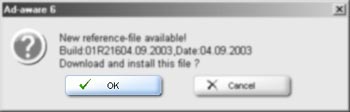 | 7 | When there is a new update available you will see this, click 
| 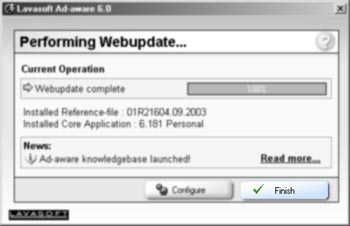 | 8 | When the Webupdate completes, click 
| 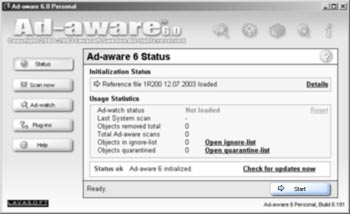 | 9 | You will now see this window. Click 
| 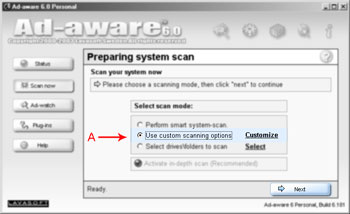 | 10 | A: Place a tick in the box shown, 
then click Customize. 
| 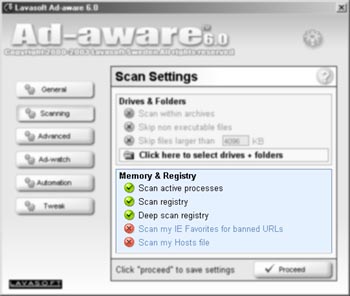 | 11 | The picture on the left shows the default settings for Memory and Registry. Change the two  's to 's to  's. 's. | 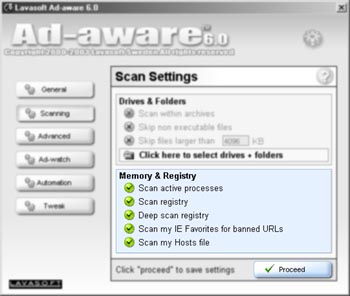 | 12 | This shows the new customized settings. Click 
| 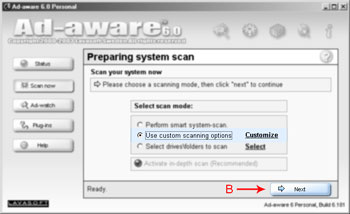 | 13 | B: Now we want to start the scan finally! Click 
| 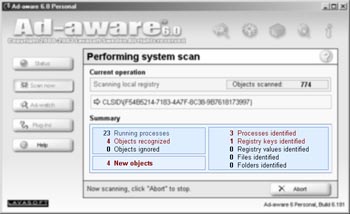 | 14 | This shows Ad-Aware in the middle of a scan. Turn your speakers down for the next step! The scan will take about 5-10 minutes. | 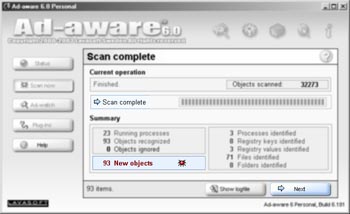 | 15 | BZZZZ! Hope you turned down your speakers! A little  will now flash when the scan is complete. will now flash when the scan is complete. Click 
| 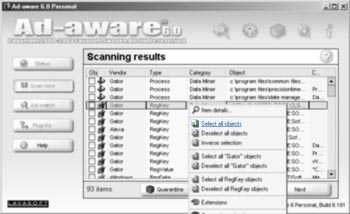 | 16 | Right click the screen as shown to the left and then click on . . Verify all the items have checkmarks. Click
| 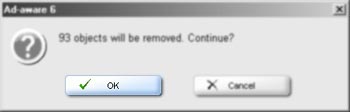 | 17 | This will confirm you want to remove all this resource-wasting, privacy-invading spyware. Click
|  | 18 | Picture to the left shows Ad-aware working it's magic and cleaning your system. | 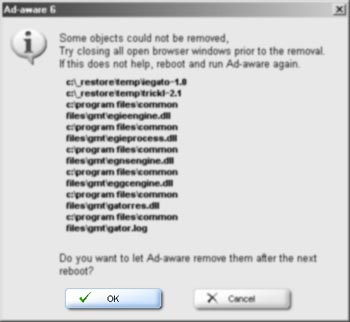 | 19 | If you happen to see this picture, don't panic (and if you don't, just restart your computer). It is basically giving you the option to have Ad-aware clean your system at the next reboot/restart. Click
then restart your computer for the changes on your system to take effect. | Thanks goes to Schizm, Mich, FisherGirl and Fluteloop, for making this page possible.
Have a question? Need help? Get free, friendly person-to-person help with your computer questions or spyware questions in our help forums!
|